
 Last month we reported on the Beta launch (invite only) of VeohTV, a full-screen online video application which is pitching itself as a more ‘open’ alternative to the likes of Joost or Babelgum. Rather than being restricted to formal licensing agreements, VeohTV pulls in videos from thousands of sources — which currently includes NBC, CBS, FOX, YouTube, MySpace, and Veoh’s own video-sharing site — with content browsable via a cable TV-style program guide. However, it was only today that I finally got a chance to test-drive the (PC-only) application.
As already mentioned, VeohTV is designed to be run in full-screen mode and, the company claims, can be operated using a remote control so as to maintain a cable TV-like viewing experience. This is mostly true, aside from the preferences dialog box, which is tiny, and the ‘interact’ section of web-based widgets (see below). At the top of the screen are five options: channels, search, interact, and library.
Channels
The channel guide (mimicking cable TV) presents a paginated list of video sources (YouTube, CBS, Fox etc). Clicking on any channel then brings up a list of videos — remember this is an on-demand affair rather than replicating live TV — with the option to play, save, mark as a favorite, or view description.
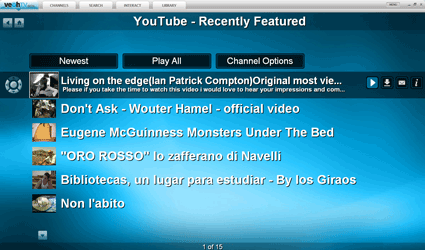
To kick things off, I decided to browse the YouTube channel which offers the standard ‘most watched’, ‘most popular’ etc. Videos played immediately but, as expected, picture quality wasn’t too good blown up to full-screen. Other channels looked much better (such as HD podcasts) but inevitably took a lot longer to load. This is the downside of VeohTV’s open approach to aggregating many video sources into one unified player. By mixing different video formats, the viewing experience varies greatly.

Search
As an alternative to browsing by channel, you’re given the option to search by title. As far as I could tell the results are pulled in from YouTube, Google Video, Veoh’s own site, and a user’s VeohTV library (which consists of videos you’ve saved or podcasts you’re subscribed to).
Library
 When you first run the application you’re prompted to install an accompanying web browser add-on (Internet Explorer or Firefox). That’s because VeohTV enables you to download and save almost any DRM-free online video to your library (similar to the way RealPlayer 11 works). In addition, videos can be saved within the application itself. So, for example, if you’re browsing VeohTV’s YouTube channel and you come across a video you want to keep, you can store it on your hard drive for later viewing.
The browser plug-in also makes it easier to discover video podcasts that you can subscribe to via RSS. Although in my testing I found this to be a hit and miss affair, and wasn’t nearly as simple as using iTunes to find and manage video podcasts.
Interact
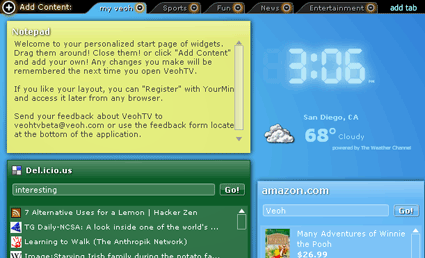
I’ve left the ‘Interact’ tab to last because it’s an odd fit, clashing with VeohTV’s otherwise lean-back viewing experience. ‘Interact’ is basically a web page — similar to start-pages Netvibes or Pageflakes — where you can install and configure various web-based widgets (powered by yourminis.com) such as news ticker, weather reports etc.
Verdict
VeohTV represents a bold attempt to create a simple video player/aggregator for any type of online video, and for that reason I really wanted to like the application. But in reality this is also why it falls short. Inconsistent picture quality and download times — although not the fault of Veoh — results in a confusing viewing experience, and in attempting to make subscribing to and managing video podcasts seamless with watching other types of online video, VeohTV actually makes the process more complicated. Having said that, many of these issues could be addressed through a few simple interface tweaks so I’m not writing off VeohTV just yet.

Anyone know about one of these services for mac? As far as I know, realplayer 11, babelgum, joost, veohtv are not mac compatible.
What I’d really like is something to download online video to my mac. Suggestions?
@Kate
Being a Mac user myself, I know how you feel. Joost has a mac version but it’s Intel Mac-only. RealPlayer’s support for Mac has always been poor, but I’ll ping them to find out if a Mac version of 11 is planned.
Zattoo has a great Mac version, but only works in a few European countries!
Have you checked out Democracy Player (soon to be renamed and re-launched)? We’ll be reviewing that soon.
– Steve
I tried Veoh TV also and I prefer Joost.
Veoh TV’s interface seems to want to mock that of a cable companies on Demand service or Tivo’s interface.
I want to see innovation in these services not copycat stuff, that is created to appeal to Tivo and On demand users.
LoL – those users maybe your target audience, but they are not using Veoh TV. Joost users are your target audience!
@Steve
You rock, thanks.
@Kate
I pinged my contact at Real, Matt Spragins (Dir of Product), about a Mac version of RealPlayer 11, and he said to expect a Beta “before the end of the year”. Yay.
i downloaded veoh tv last night and now ot won’t let me delete it…why?
i really want it off of my computer
I went through the painful download process and then after all that, I have to register too. Really don’t like the ideo of P2P software running in the background on my machine eating up valuable resources.
There’s a better way to watch internet television – in your machine’s native player. Check out http://www.RSSLiveTV.com . And no annoying advertising to look at.
i like this veohtv is good if i want 2 serching some film that i like couse is good and also nice
p2ptv programs are good but I prefer sites like HULU, the ABC, CBS and FOX streaming sites and http://streamingtvepisodes.com/
They are easier to use IMO..
Hi
this veoh tv is good.. but in some cases its bad.. we cannot fast forward..
Video diputar segera tetapi, seperti yang diharapkan, kualitas gambar tidak terlalu bagus hingga layar penuh. Saluran lain terlihat jauh lebih baik (slot deposit pulsa) tetapi mau tidak mau butuh waktu lebih lama untuk memuat.